





How to check for DNS and IPv6 leaks in a minute: browser and terminal
The VPN is on and the check site shows the right country, so all is well? Not necessarily. Your real address leaks through IPv6, DNS queries, WebRTC in the browser and apps that ignore the system proxy. When we built the leak check for Kordon, it turned out a plain IP check misses almost all of these. Here is how to check each leak in a minute and what to do if you find one.
What a leak is and why the VPN doesn't see it
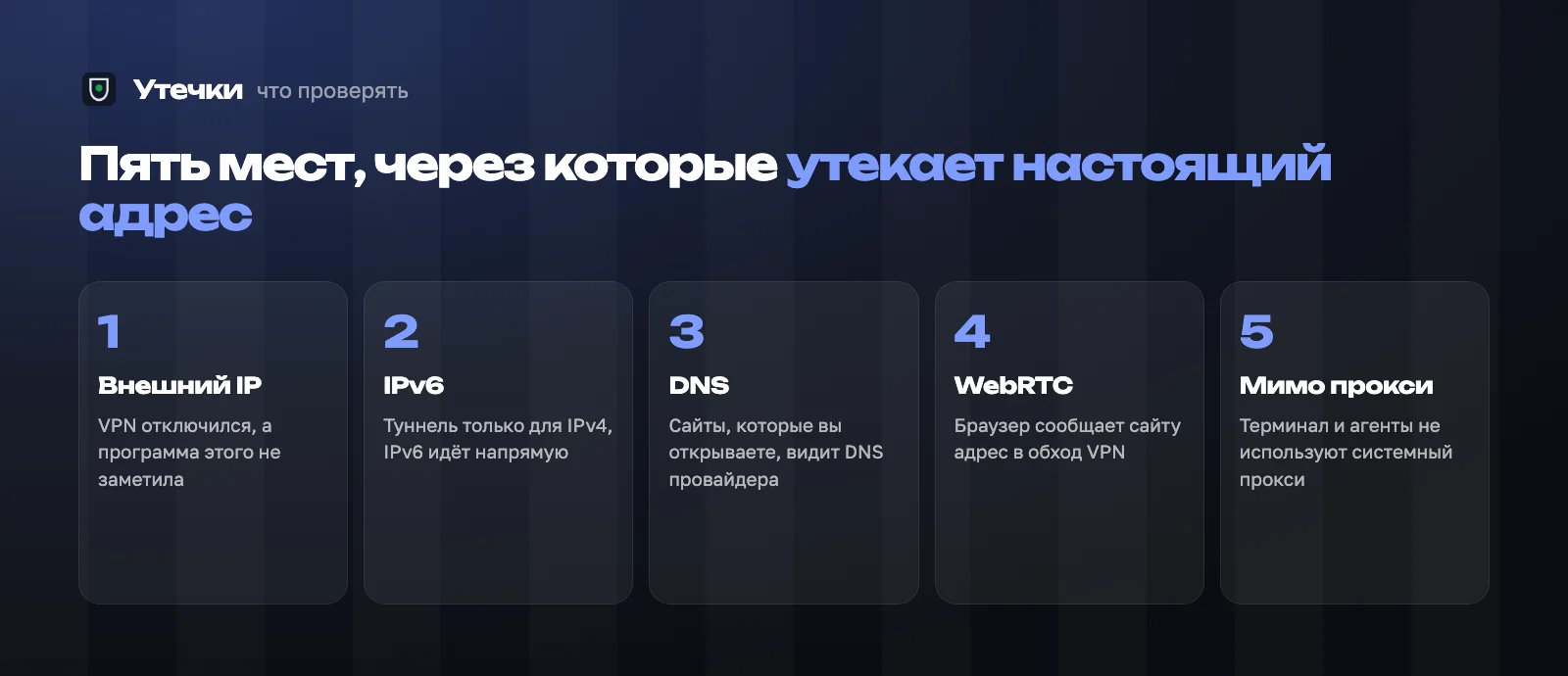
A leak is any request that left outside the VPN tunnel. The VPN client doesn't notice: the tunnel works, part of the traffic just doesn't enter it. There are five such places:
- external IP - the VPN dropped for a couple of seconds and an app carried on directly;
- IPv6 - the tunnel covers IPv4 only, while your ISP gives you IPv6;
- DNS - site names are resolved by your ISP's DNS, so the ISP sees what you open;
- WebRTC - the browser tells sites your network addresses, bypassing the proxy;
- apps bypassing the proxy - the VPN is in proxy mode, the browser goes through it, the terminal, git and AI agents go direct.
The browser check
The quickest way is to open a leak test site such as ipleak.net or browserleaks.com with the VPN on and look at four lines:
- IPv4 - should be the VPN's address;
- IPv6 - either the VPN's address or "not detected". Your ISP's address here is a leak;
- DNS servers - should be in the VPN's country, not your ISP's;
- WebRTC - your real public address must not be in the list.
The blind spot: it only checks the browser. With a proxy-mode VPN the browser looks perfect while other apps go direct.
The terminal check: three commands
The terminal shows what apps see. On Mac and Linux run:
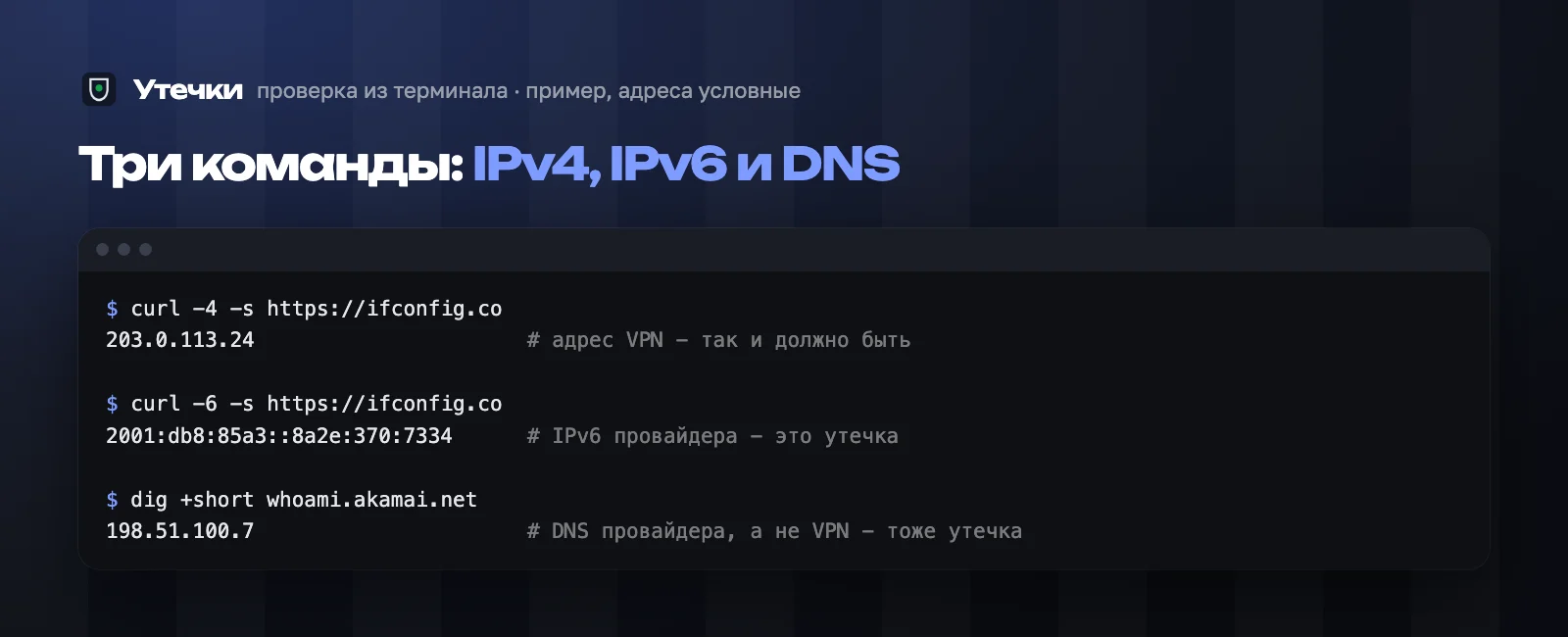
- curl -4 -s https://ifconfig.co - your IPv4. Should be the VPN's address;
- curl -6 -s https://ifconfig.co - your IPv6. An error or the VPN's address is fine; your ISP's address is a leak;
- dig +short whoami.akamai.net - the DNS server your queries go through. If it's your ISP's, DNS leaks. On Windows use nslookup whoami.akamai.net.
Compare the first address with what the browser check showed. If they differ, the VPN only routes the browser.
How to close each leak
- IPv6 - turn on IPv6 leak protection in the VPN client or disable IPv6 in network settings;
- DNS - turn on "use VPN DNS" or DNS leak protection. On Windows, smart multi-homed name resolution often causes it;
- WebRTC - limit WebRTC with a browser setting or extension if you don't need browser calls;
- apps bypassing the proxy - switch the VPN client from proxy mode to system VPN mode (TUN, "all traffic");
- drops - turn on a kill switch. See what a kill switch is and why the built-in one isn't always enough.
Check again after every change: some clients reset settings on update.
A check that runs by itself
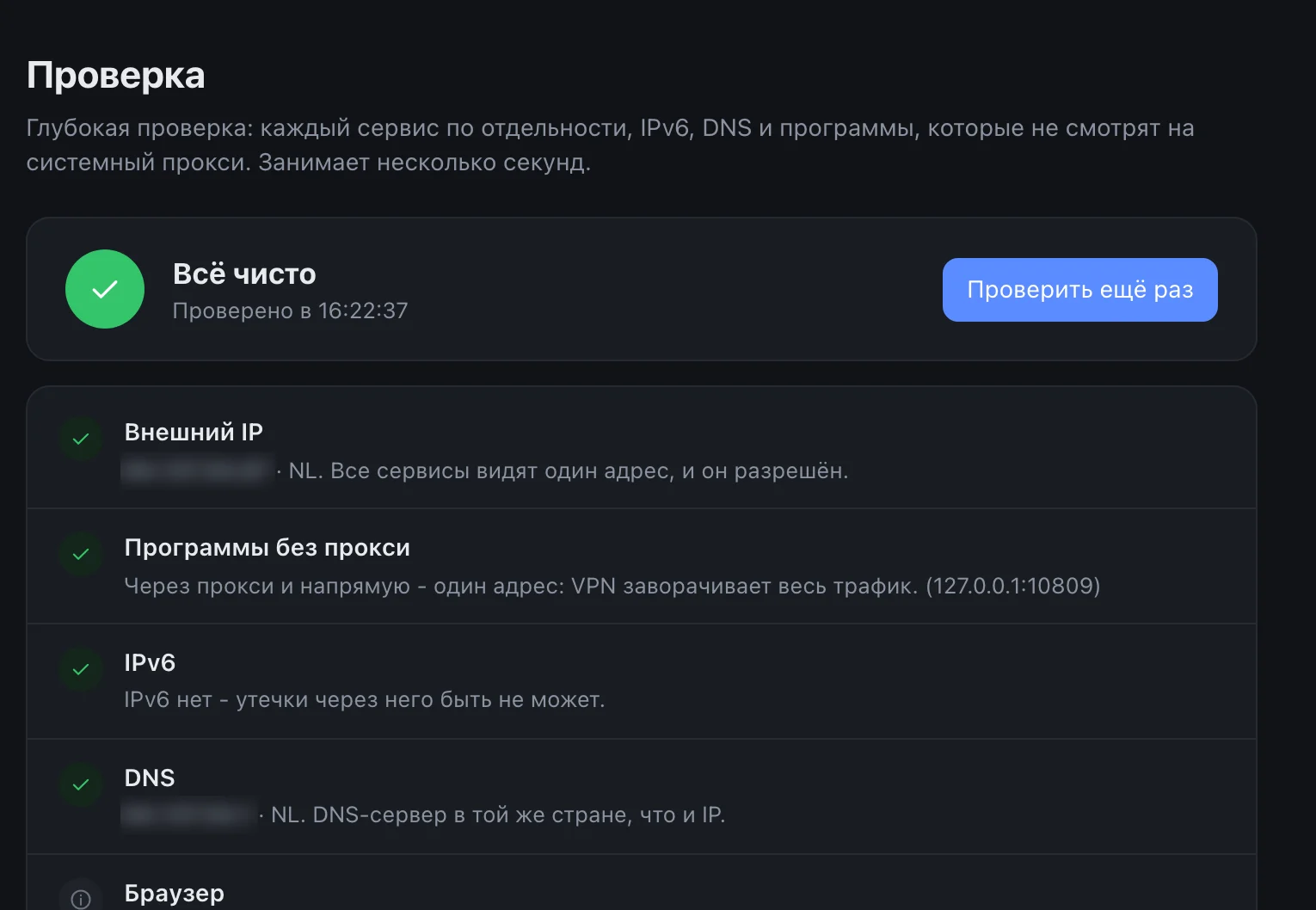
A manual check shows one minute, and the network keeps changing. That's why our Kordon has a leak check that runs on a button and by itself on every network change: IPv4 from several services, IPv6, DNS country, apps bypassing the proxy, WebRTC via the browser extension and the route to the AI services themselves.
A leak is found - Kordon tells you what to turn on in the VPN and messages you in Telegram. If an app's address is wrong, it pauses until things are back to normal.
If this is already on your plate, here is how we do it end to end: Corporate website development.
Frequently asked
How do I check for a DNS leak?+
With the VPN on, open a leak test site or run dig +short whoami.akamai.net in the terminal (nslookup whoami.akamai.net on Windows). If the DNS server belongs to your ISP rather than the VPN, it leaks.
How do I know IPv6 bypasses the VPN?+
Run curl -6 -s https://ifconfig.co. If it returns your ISP's address, IPv6 leaks. An error or the VPN's address is fine.
Why is the browser clean but the terminal shows another IP?+
The VPN is in proxy mode and only routes the browser. Switch the client to system VPN mode (TUN).